Friday, November 18, 2011

Christmas Classics On Blu-Ray

Christmas Classics On Blu-Ray
The Original Christmas Classics has arrived on Blu-ray box set. The box set contains four of the most beloved holiday TV specials of all time, including the Rankin/Bass classics “Frosty the Snowman,” “Rudolph the Red-Nosed Reindeer,” “Santa Claus is Comin’ to Town” and “Frosty Returns
These iconic TV specials are part of the Canadian and US holiday tradition, just like baking cookies or trimming the Christmas tree!  The holiday season just wouldn’t be the same without them…and many of continue to watch these each and every year! I know I still do!

The Original Christmas Classics box set will be available wherever Blu-rays are sold for $44.99 SRP.
  
VeggieTales The Little Drummer Boy
 
Also being released for the 2011 holiday season is an all-new VeggieTales holiday-themed DVD, VeggieTales The Little Drummer Boy. The title is a heartwarming tale that retells the classic The Little Drummer Boy story. The DVD offers a timeless message of hope during the holiday season, and will feature multi-Grammy and Dove Award-winning artists BeBe and CeCe Winans, singing their version of the iconic “The Little Drummer Boy” song.
DVD Synopsis
In this Veggie-version of a holiday classic, Junior Asparagus stars as The Little Drummer Boy, a lonely child who finds the true meaning of Christmas when he stumbles upon the birth of the baby Jesus. A story of generosity, hope and love, this timeless tale will warm the hearts of children everywhere!

Bonus Features:
  • Audio Commentary
  • “The Little Drummer Boy” Music Video
  • Sing-Along Songs—“The 8 Polish Foods of Christmas” and “Can’t Smile Without Ewe”
  • Behind the Music of “The Little Drummer Boy”
  • Visit a Drum Factory with Junior
  • Family Activity—Make Your Own Drum
  • Interactive Book Preview—Christmas Is Finally Here
Friday, October 21, 2011

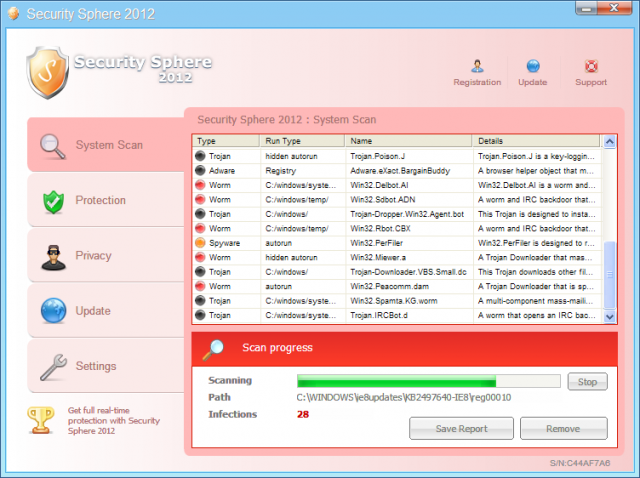
How To Uninstall Security Sphere 2012

How To Uninstall Security Sphere 2012

Security Sphere 2012 is a computer malware similar to 'Security Shield'. This malware is a rogue anti-spyware program that poses to be legitimate security program. Security Shield is actually a program that displays false security results and false alerts about the state of your computer. In addition, it hijacks your computer so that you cannot run any applications.

Security Sphere 2012 is installed silently through visits to hacked web sites, exploits, and fake online scanners. Sometimes Security Shield and other similar malware programs are downloaded simply by visiting sponsored sites within google search results. Once installed, the infection randomly creates folders on C:\Documents and Settings\All Users\Application Data\, in (Windows XP), or C:\ProgramData, on (Vista and Windows 7) systems. It is then be configured to start automatically when you login to your computer. 

To remove Security Shield 2012, simply follow these steps:

- Reboot your computer into Safe Mode with Networking. To do this, turn your computer off and then back on and immediately when you see anything on the screen, start tapping the F8 key on your keyboard.Using the arrow keys on your keyboard, select Safe Mode with Networking and press Enter on your keyboard. Windows will now boot into safe mode with networking and prompt you to login as a user. make sure to login as the same user you were previously logged in with in the normal Windows mode.

When in Safe More with Networking, we must first end the processes that belong to Security Sphere 2012 so that it does not interfere with the cleaning procedure. To do this, please download RKill to your desktop from the following link.

RKill Download
Once RKILL is downloaded, double-click on the iExplore.exe icon in order to automatically attempt to stop any processes associated with Security Sphere 2012 and other Rogue programs. When RKILL has finished,  you will then be able to proceed with the rest of the guide. Do not reboot your computer after running RKill as the malware programs will start again.If you continue having problems running RKill, you can download the other renamed versions of RKill from the RKill download page. Both of these files are renamed copies of RKill, which you can try instead. Please note that the download page will open in a new browser window or tab.
Now that the program has been terminated, you have to remove its associated files from the pc.

Kill processes (using rkill):
[ransom].exe

Delete registry values:
HKEY_CURRENT_USER\Software\Microsoft\Windows\CurrentVersion\RunOnce "[ransom].exe"


Delete files:
%AllUsersProfile%\[ransom].exe


Delete directories:
%AllUsersProfile%\[random]


Now reboot your computer.

Wednesday, August 31, 2011

What Are QR Codes?

What Are QR Codes? 

You've probably seen these just about everywhere now. These odd looking squares are popping up just about anywhere you can think of.

They are called 'QR' Codes (abbreviated from Quick Response code) and are a type of matrix barcode (two-dimensional code) designed to be read by smartphones. The QR code consists of black modules arranged in a square pattern on a white background. The QR code's encoded information may be plain text, a URL, or other data. 

The real question is - What's the benefit of these QR codes? Why do we use them and why were they even created in the first place? The answers is simple - they are an easy and simple way to deliver information to someone via a smartphone. You can send them to your webpage, offer them a message etc. Just by scanning this little square with a QR code reader. 

All your potential visitor, or client has to do is scan the QR code with their smartphone's barcode reader (downloadable from the Android Marketplace or iPhone Appstore) and their phone's browser will instantly be directed to the webpage you've designated.

Now, get your smartphone out and scan our QR code!

Wednesday, August 3, 2011

How to Uninstall Programs From Your Computer

How to Uninstall Programs From Your Computer

After all these years, you've been downloading and installing programs at will without ever worrying about uninstalling them, right? maybe you just downloaded that cool new application that everyone is using, but in the end, you find it's not for you. What do you do now?Simply removing a program from your windows start menu programs menu doesn't actually get rid of the program. When you install a program on your computer, it installs many files and entreis into your system registry as well as on the hard drive. To properly uninstall a program, you have to follow an uninstallation process.

In Windows


In Windows, often, you can find a program's uninstaller next to the program itself in the Start Menu. However, if the uninstaller is not there, follow this info
  1. Go to Start Menu > Control Panel.
  2. Click on "Uninstall a Program" under the "Programs" section.
  3. Browse the list until you locate the program you wish to uninstall. Click on it and you should then see an "Uninstall" button appear at top of the pane. Click on that, and it'll open up that program's uninstaller. Select next, and once completed, the program will be completely removed from your system.

Thursday, July 21, 2011

Parental Web Controls Go Social with Iglu

Parental Web Controls Go Social with Iglu

Novel software presents a new way for parents to create safe web environments for children

(Santa Clara, Calif. – July 7, 2011) - Built to address the issues faced by the online generation, Iglu uses socially-compiled webspaces to allow parents to work with their kids and other parents to set Internet policies for the family.  Iglu addresses the two largest concerns with web filtering: finding and eliminating all unwanted web content and teaching kids how to address online challenges without destroying trust.

Collaborative Safe Spaces
Instead of trying to blacklist all unwanted web content, Iglu is built upon social whitelisting to create safe opt-in webspaces. These webspaces are moderated by parents, teachers and web safety experts from across the Internet.  Thanks to contributors, Iglu webspaces grow constantly and parents can be assured that all of the websites their children visit have been carefully considered.

Working with Kids
Iglu encourages discussions and fosters good online behavior by involving kids as part of the rule making process. When a website is unavailable, a child can request access by sending a message in their own words.  Parents receive requests in real time and can approve them immediately.

Technology can Never Replace the Role of the Guardian
In contrast to letting a software program qualify whether a website is appropriate, Iglu reaffirms the role of parents as the key decision maker. This encourages children to work with parents, not against the software. With this approach, parents become more engaged in the online activities of their kids, while maintaining a level of trust and privacy. Kids forgo a completely open Internet, but have ways to access content when needed.

Additional Iglu features include:
  • Remote Management - Parents can adjust and customize settings, set up alerts and review website requests from any mobile or web-enabled device.
  • Online Curfews - Parents can specify when children are permitted to connect to the web. They can also limit the types of websites kids can access at different hours of the day.
  • User Profiles - Profiles allow parents to create unique settings for each of their kids.
  • History Logs - Iglu records browsing across all browsers and programs.


Iglu is available for a free, 30-day trial.  Subscriptions start at $4.99 per month.  To learn more about Iglu, please visit www.iceio.com.  Follow Iglu on Twitter, @websafety, and Facebook.  

About Iglu:
Iglu was founded in July 2009 by Bill Madden, the director of Thor College, and by Synergies, a Silicon Valley and Toronto-based media development firm. Committed to teaching safe web practices, they developed Iglu for increased content control and to promote open dialogue about online safety in the home. More information can be found at www.iceio.com.