Tuesday, June 7, 2011

How To Remove The Recovery Virus

How To Remove The Recovery Virus


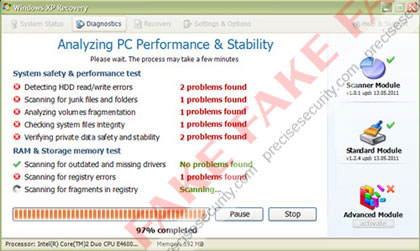
The Windows XP 'Recovery' is a malware program that is widely infecting computers under the guise of system optimization software. Windows XP Recovery will install itself on Windows XP, Windows Vista, and Windows 7 computers providing false system information. It's purpose is to deceive computer users into purchasing a licensed full version version of the program. Once loaded on to the computer, this product will launch a system scan and warn of hard disk drive errors, junk files and folders, numerous registry errors, and several outdated drivers. All are false and do not exist on the system.
To further scare computer users into purchasing the full version of Windows XP Recovery, it will flood the computer with system task bar. All attempts to fix these errors will refer user to a payment web site where credit card account will be processed. The full version (paid version) will not repair the errors. This software was developed solely to steal money from innocent victims.

Windows XP Recovery Removal Procedures

Manual Removal:
Booting 'Safe Mode with Network Support' is the best option to start the removal process.

Press Ctrl+Alt+Del on keyboard to stop the process “Windows XP Recovery”.
When Windows Task Manager opens, go to the 'Processes' Tab and find and end the following process:
(example: 2354568.exe (typically some random characters).exe

2. Update your antivirus to the latest database signatures.
3. Thoroughly scan your computer and remove all threats.
4. All Windows XP Recovery registry entries deleted. See below for entries associated to the rogue program.
5. Exit registry editor.
6. Clean startup of Windows XP Recovery as follows:
Start > Run, type msconfig on the “Open” dialog box. 'Windows System Configuration Utility' will launch. navigate to the Startup tab, un-check the following Start-up item(s):
(example: 2354568.exe (typically some random characters).exe

7. Click Apply, reboot

Windows XP Recovery Removal Tools:

To completely remove the Windows XP Recovery, download and run Malwarebytes Anti-Malware. In the event Windows Xp recovery blocks the installation of Malwarebytes Anti-Malwar (MBAM). You will need to download it on another computer, and rename the EXE extension to anything other than exe. Copy it to USB and run it on the infected computer.

Portable (USB) SuperAntiSpyware:

A thorough scan can be run from USB with SuperAntiSpyware Portable Scanner

Windows XP Recovery Registry Edits

Windows XP Recovery Malware Entries
%AllUsersProfile%\[random].exe
%AllUsersProfile%\[random].dll
%UserProfile%\Start Menu\Programs\Windows Recovery\Windows Recovery.lnk
%UserProfile%\Start Menu\Programs\Windows Recovery\Uninstall Windows Recovery.lnk
%UserProfile%\Start Menu\Programs\Windows Recovery\
%UserProfile%\Desktop\Windows Recovery.lnk
%AllUsersProfile%\Application Data\.exe
%AllUsersProfile%\Application Data\.dll
%Programs%\Windows XP Recovery\Windows XP Recovery.lnk
%Programs%\Windows XP Recovery
%Desktop%\Windows XP Recovery.lnk
%TempDir%\dfrgr
%TempDir%\dfrg
%TempDir%\[random characters].exe
%TempDir%\[random characters]
Windows XP Recovery Registry Entries:
HKCU\Software\Microsoft\Windows\CurrentVersion\Run “[random characters].exe”
HKCU\Software\Microsoft\Windows\CurrentVersion\Run “[random characters]“

Wednesday, June 1, 2011

SONOS ADDS TWO FREE GLOBAL RADIO SERVICES

SONOS ADDS TWO FREE GLOBAL RADIO SERVICES TO THE HOME LISTENING EXPERIENCE

AUPEO! And Stitcher SmartRadio Now Playing on Sonos

SANTA BARBARA, CA – June 1, 2011 – Sonos, the leading developer of wireless music systems for the home, today took another step in streaming all the music, radio, news and podcasts on the planet by adding two innovative and global radio services to the Sonos experience - AUPEO! Personal Radio and Stitcher SmartRadio™. 

Beginning today, all Sonos customers around the world can tune in to these services for free by simply registering at www.AUPEO.com/Sonos or www.stitcher.com.  After registering, go to the Music Menu on any Sonos Controller, touch More Music and add the service to Sonos.  

“Our goal at Sonos is to continuously connect our customers with all the music and radio on the planet,” said John MacFarlane, CEO, Sonos, Inc. “Providing them with two free, innovative radio services like AUPEO! and Stitcher enhances their listening experience and increases their entertainment choices at home.”

AUPEO! Personal Radio
AUPEO! Personal Radio, now free with every Sonos system, is an Internet radio platform that lets you stream music for free and offers an excellent music discovery experience. Build your personal radio station starting with a music genre and influence it with “Love” and “Ban” buttons – you´ll only get music you really like!  Choose from 100+ expertly crafted Genre Stations, search for a specific artist on Artist Radio or tune your Personal Radio with the one-of-a-kind Mood Selector to match your mood.  Plus, AUPEO! is offering all Sonos customers a free 14-day trial of AUPEO! Premium, which features ad-free listening and  higher streaming audio quality. 

Stitcher SmartRadio
Stitcher SmartRadio, now free with every Sonos system, is a podcast and Internet radio service that streams all of your favorite podcasts and radio shows, on-demand with no need for downloading or syncing. Choose from more than 5,000 shows in news, comedy, sports, talk, and entertainment from brands as diverse as NPR, CNN, Fox, BBC World Service, TechCrunch headlines, Adam Carolla and more. You can even personalize your listening experience by “stitching” together your favorite shows to create your own customized playlist and also discover new shows based on your past listening preferences.

For more information about Sonos or to locate an authorized Sonos dealer in your area, please visit www.sonos.com or call 877.80.SONOS.

About Sonos, Inc.
Sonos® is the leading developer of wireless multi-room music systems for the home. The Sonos Multi-Room Music System is the first, wireless multi-room music system that lets you play all the music you want all over your house – and control it all from the palm of your hand.  Sonos liberates the music stored on a computer so it can be enjoyed all over the house.  In addition, by partnering with audio services like AUPEO, Deezer, iheartradio, Last.fm, MOG, Napster®, Pandora®, Rdio®, Rhapsody®, SiriusXM Internet Radio, Spotify, Stitcher SmartRadio™, TuneIn, Wolfgang’s Vault, and more, Sonos gives music lovers instant, computer-free access to millions of songs, thousands of radio stations, audiobooks, and more.  The award-winning Sonos Multi-Room Music System is available at more than 6200 retailers in over 65 countries worldwide; or direct from Sonos at www.sonos.com.  Sonos is a privately-held company, headquartered in Santa Barbara, CA with offices in Cambridge, MA, Hilversum, Netherlands, Shenzen, China, and Penang, Malaysia.

© 2004-2011 by Sonos Inc. All rights reserved. Sonos is a Registered trademark of Sonos, Inc. in the U.S. and other countries with pending trademark registrations worldwide. SonosNet, ZonePlayer, ZoneBridge and all Sonos logos are trademarks of Sonos Inc. in the United States and other countries. All other products and services may be trademarks or service marks of their respective owners.

Tuesday, May 10, 2011

Twitter Shortcuts Nice and Tweet


Twitter Shortcuts Nice and Tweet


Not only has twitter taken the Internet by storm, but it's a simple way to get your message out. As popular as facebook may be, it is still not as simple as twitter. Twitter gets to the point, with 140 characters or less. No need to create a group, or a page, as with facebook. Twittrer of course integrates with just about any website, or social media application, so it is definitely compatible!


Below are twitter shortcuts divided into 3 categories, Actions, navigation, and Timelines.


Actions
f : favorite
r : reply
t : retweet
m : direct message
n : new Tweet
enter : toggle details pane

Navigation
? : this menu
j : next Tweet
k : previous Tweet
space : page down
/ : search
. : refresh Tweets and back to top

Timelines
g h : home
g r : replies / mentions
g p : profile
g f : favorites
g m : messages
g u : go to user

Thursday, April 21, 2011

One Media Player To Rule Them All

One Media Player To Rule Them All


Just because the biggest and most recognized company makes a media player doesn't mean it's the best - or even any good for that matter. As with many things in life and on the internet, the biggest isn't always the best.


Specifically, Microsoft's windows media player is the most popular, but by far not the best. The biggest problem is a media player's ability to play all movie formats. Media Player is notorious for not supporting most movie formats. The problem lies in the video decoder portion of the media player. Movies are created (encoded) with specific formats such as AVI, MKV, MPG and so on. These formats require a decoder to be able to view them.Therein lies the problem. If a movie is encoded and you do not have the proper decoder, the movie will not play. You may get sound and no video etc. Windows media player will automatically attempt to download the proper "codec" but almost always fails to find the proper codec.

Competing movies players such as VideoLan Technologies (VLC Player) pretty much eliminate this problem. VLC media player support many video formats and plays just about every format without issue. VLC is also free to download and has the support of the community for updates, addons and more! Give it a try!


Download VLC

Tuesday, March 29, 2011

Get Your Old Facebook Photos Back

Get Your Old Facebook Photos Back


Facebook has once again made some changes to their photos using the new 'Photo Theater'. Unfortunately, many of us liked it the way it was. if it ain't broke, don't fix it. Apparently that wasn't enough  


Fortunately, you have some options to get the old facebook picture gallery back.


You can use the facebook app: http://www.facebook.com/pages/Disable-Picture-Theater-Pop-out/180966125280642


Goole Chrome users:
1) Install the plugin; http://crossrider.com/install/120-get-rid-of-the-new-and-annoying-facebook-image-preview

Firefox users:

You can also press F5 (refresh) to reload the page with the old images gallery format.
Firefox users can also


Install for Firefox here and Chrome here to permanently disable Facebook photo theater view!  
Internet Explorer users :will have to wait, and disable it manually.